Free Telegram QR Code Generator
Create a branded Telegram QR code with a pre-filled message. Customize color, logo, and frame. Download as PNG, SVG, PDF, JPG, or WebP. Customers scan once — Telegram opens instantly.
- Free and no sign-up required.
- Your logo, colors, shape, and frame.
- Download in PNG / SVG / PDF / JPG / WebP.
- QR code never expires (static t.me QR).
- Works for Telegram personal and channel chats.
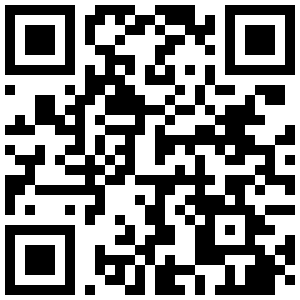
Enter a valid Telegram username to get your QR code.
Your Business
online
Your message will appear here
How to Create a Telegram QR Code in 3 Steps
- 1
Enter your username
Type your Telegram username (e.g. @username) and add an optional pre-filled message.
- 2
Customize the design
Choose colors, upload your logo, pick a module shape, and add a frame with a caption.
- 3
Download and share
Download in PNG, SVG, PDF, JPG, or WebP. Place on any printed or digital material.
How Telegram QR Codes Work
A Telegram QR code encodes a t.me link — a direct link to your Telegram username with an optional pre-filled message.
When a customer scans the code, Telegram opens automatically with your username and the message ready to send — no phone number saving required.
Because it is a static QR code pointing directly to t.me, it does not depend on any third-party redirect service and works as long as your Telegram username is active.
Where to Use Your Telegram QR Code
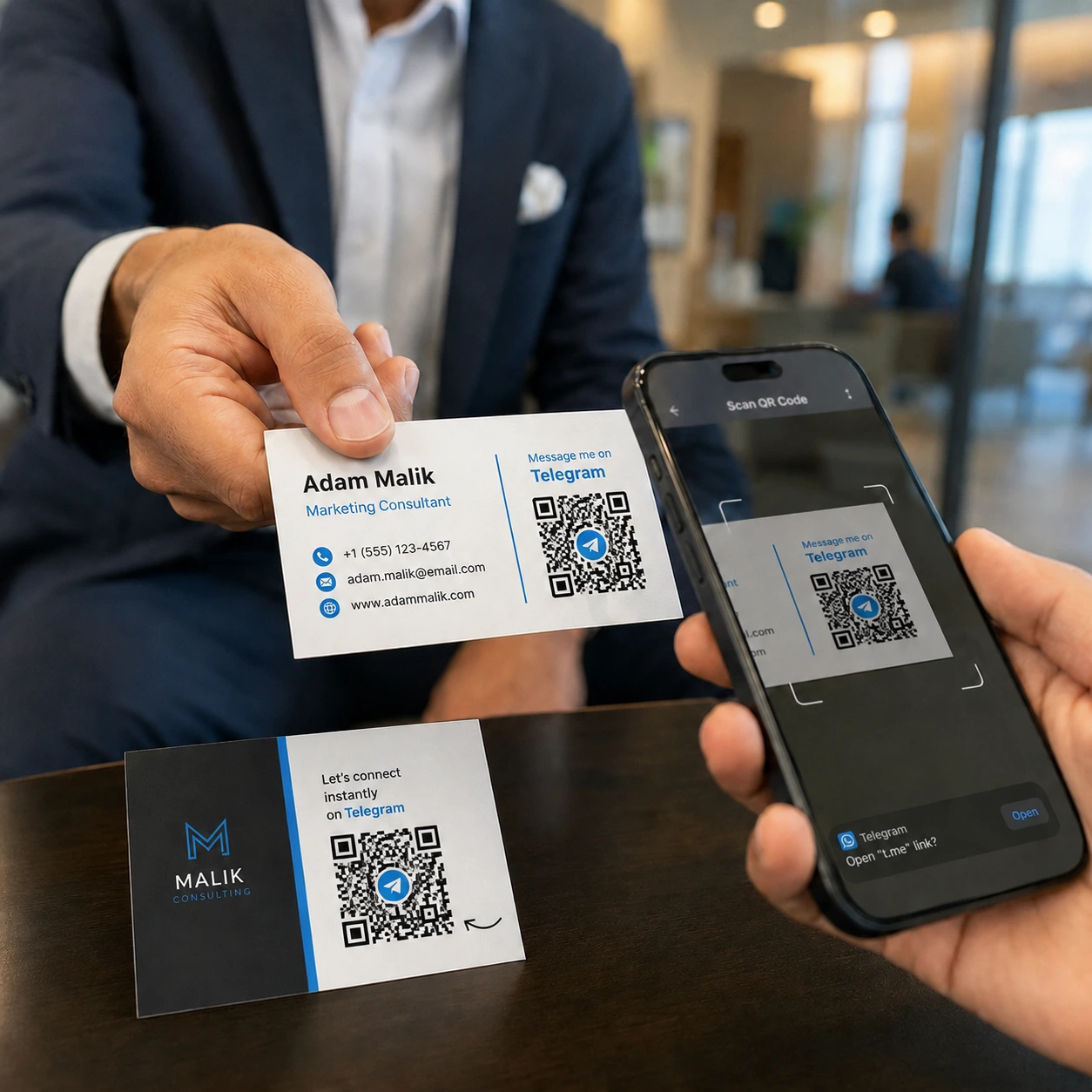
Business cards

Packaging
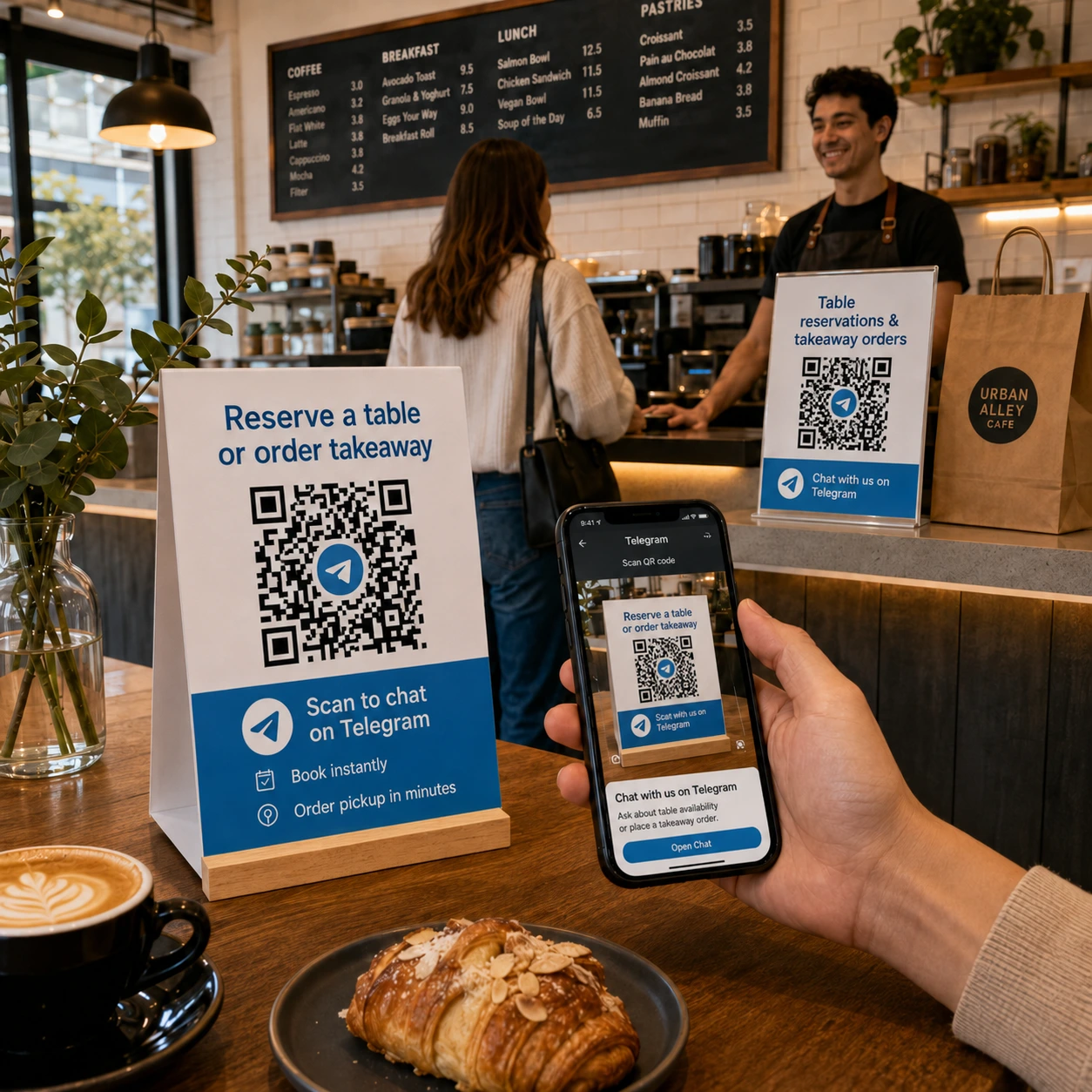
Cafes and restaurants
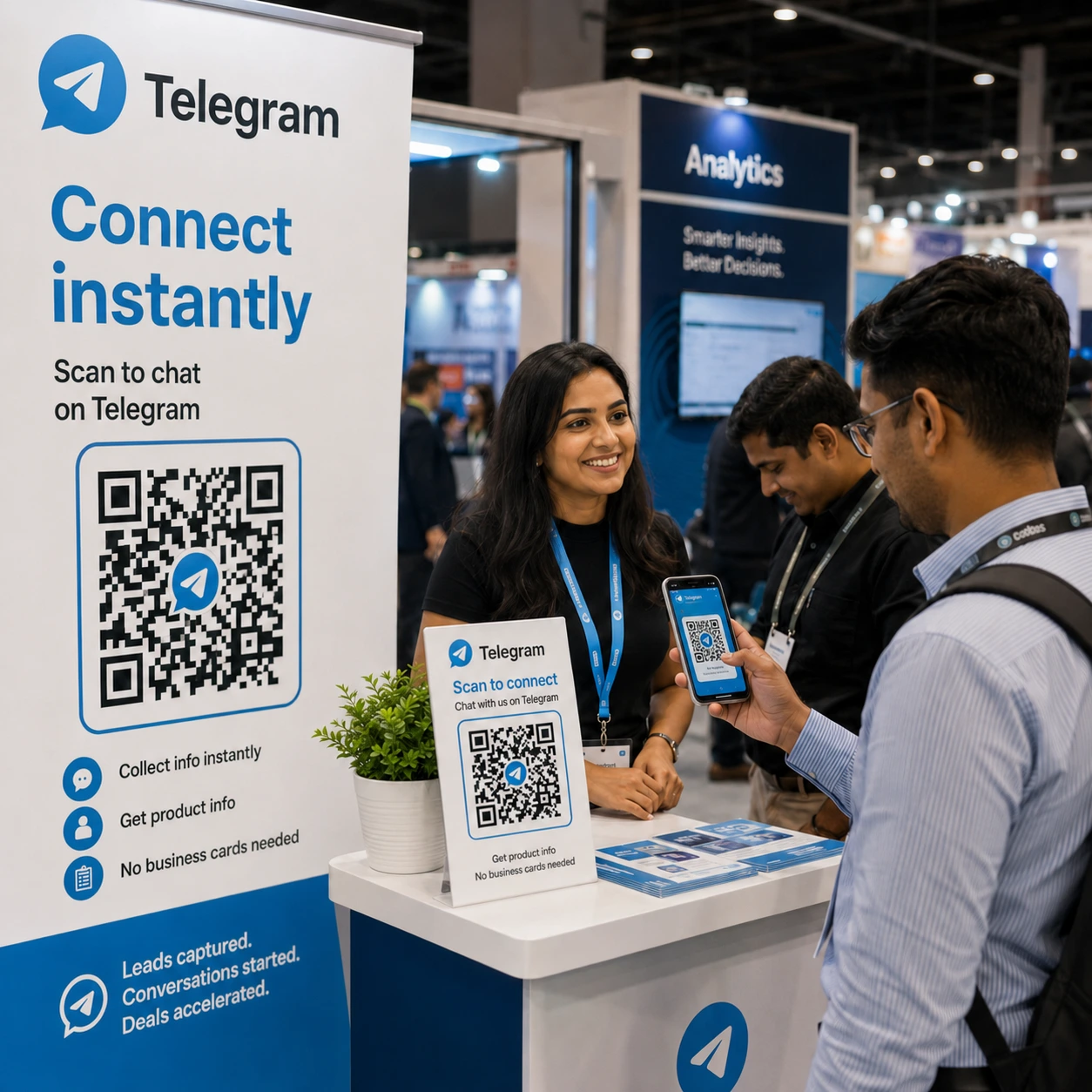
Events and exhibitions

Email signatures
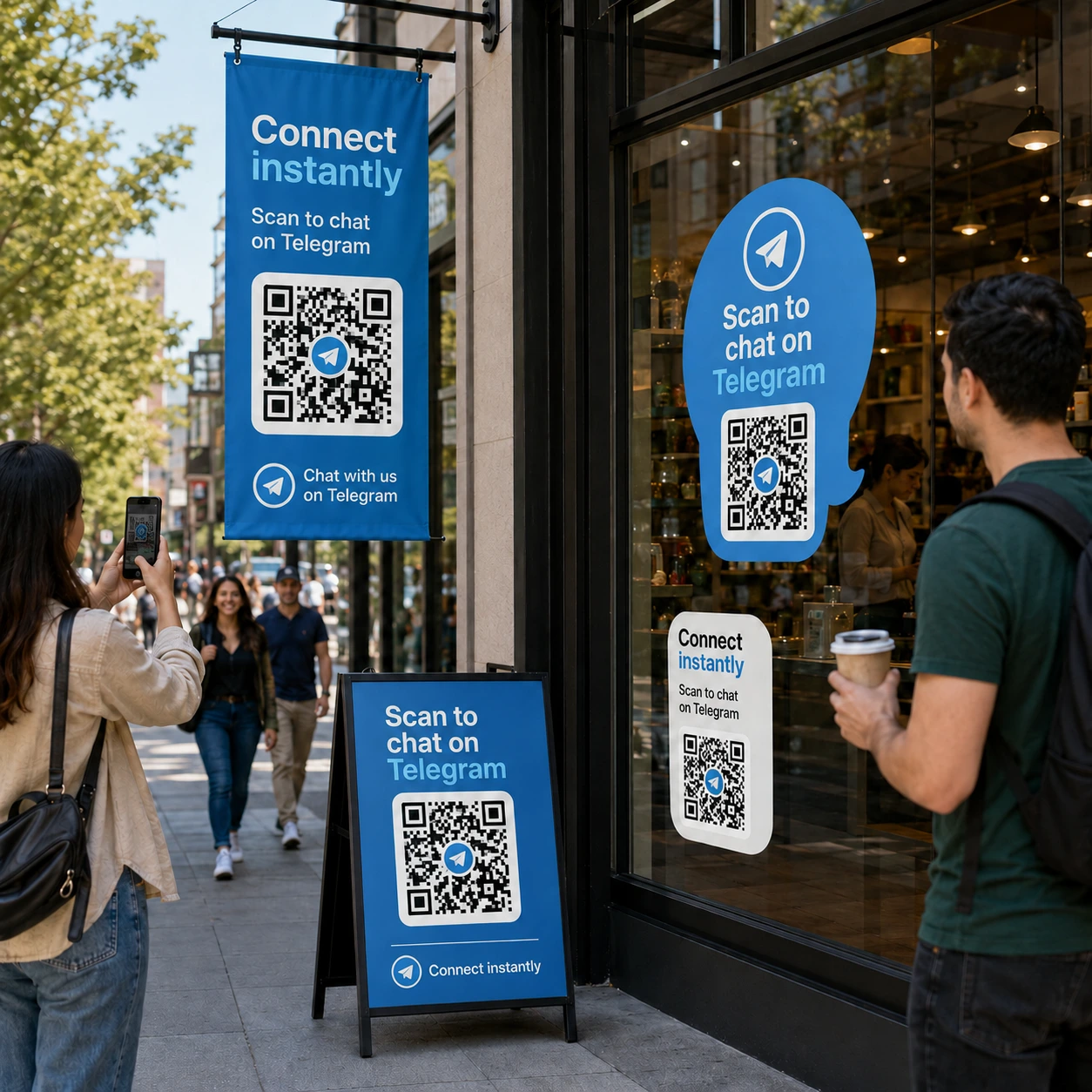
Outdoor advertising
Business cards
add your QR code so contacts can message you instantly.
Packaging
let customers reach support or leave feedback with one scan.
Cafes and restaurants
accept table reservations and takeaway orders via Telegram.
Events and exhibitions
collect leads on the spot without exchanging contact details.
Email signatures
turn every email into a direct Telegram entry point.
Outdoor advertising
banners, posters, and window stickers connect passers-by to your chat.
Ready-Made Messages for Your Telegram QR Code
Choose a pre-filled message that matches your use case. The customer sees it ready to send when they open Telegram — they can edit it or just tap Send.
In iSales, you can use the same message text as a chatbot trigger, so every scan from this QR code is automatically tagged by source and routed to the right scenario.
- Sales
Hello! I'd like to know the price.
4:20 PM - Booking
Hello! I'd like to make an appointment.
4:20 PM - Order
Hello! I'd like to place an order.
4:20 PM - Support
Hello! I need help with my order.
4:20 PM - Exhibition
Hello! I was at your stand and would like to receive the presentation.
4:20 PM - Restaurant
Hello! I'd like to book a table.
4:20 PM - Real Estate
Hello! I'm interested in the property from the listing.
4:20 PM - Beauty
Hello! I'd like to book a beauty appointment.
4:20 PM - Delivery
Hello! I'd like to place a delivery order.
4:20 PM
How to Turn Your QR Code Into a Sales Channel
A QR code opens a chat — but if a customer messages at night, on a weekend, or reaches multiple managers at once, the lead can slip through.
Connect a chatbot: it replies instantly, qualifies the lead, and passes the conversation to the right employee.
Set up an automation in iSales — the trigger is the incoming message from your QR code source, and the bot handles the first 3–4 steps of the sales flow automatically.
Bot Scenarios for Telegram QR Codes
Lead Capture
Greets new contacts, qualifies their interest, and saves the lead to CRM — no human needed.
Setup AI AssistantAppointment Booking
Collects date, time, and name. Confirms the slot and notifies the responsible employee instantly.
Setup AI AssistantCustomer Support
Identifies the order, clarifies the issue, and routes to the right specialist — 24/7.
Setup AI AssistantProduct Catalog
Sends your catalog, answers product questions, and accepts orders around the clock.
Setup AI AssistantOrder Tracking
Instantly shares order status and delivery updates — customers get answers without calling.
Setup AI AssistantReview Collection
Asks customers to rate their experience after a visit or purchase. Flags low scores to a manager.
Setup AI Assistant
How to Make Your QR Code Easy to Scan
Print size: use at least 2 × 2 cm (0.8 × 0.8 in) for close-range scanning and 10 × 10 cm or larger for outdoor posters and banners.
Contrast: place dark QR modules on a light background — maintain a contrast ratio of at least 4:1 for reliable scanning in all lighting conditions.
Quiet zone: keep a clear white margin of at least 4 modules on every side — cropped edges are a common cause of unreadable Telegram QR codes.
Logo coverage: keep any embedded logo under 30% of the QR code area — larger images exhaust error correction capacity and cause scan failures.
Test before you print: scan the finished code with at least two phones (iOS and Android) before committing to a print run.
Export format: download SVG or PDF for all printed materials — vector formats scale to any size without pixelation; use PNG at 300+ DPI for digital only.
Common Mistakes When Creating a QR Code
Wrong username format — always use your full @username without extra characters; an incorrect format makes the Telegram link unable to open the chat.
Overly complex design — too many colors, sharp gradients, or a logo over 30% of the QR area reduce scanner success rates on lower-end phone cameras.
Printing too small — Telegram QR codes under 2 × 2 cm are unreliable; scale up to at least 10 × 10 cm for outdoor or large-format use.
No pre-filled message — a QR code that opens a blank Telegram chat loses most potential replies; always add a short, welcoming opening message.
Skipping the print test — always scan the exact printed output on a real device before mass production; digital previews never catch color-shift issues.
Raster export for print — PNG files pixelate at large sizes; always export as SVG or PDF when sending to a print shop or placing on signage.
Frequently Asked Questions
Enter your Telegram username, add an optional pre-filled message, and customize the color, logo, and frame if you like. Download in PNG, SVG, PDF, JPG, or WebP — free, no sign-up.
No. The QR code opens the Telegram chat directly via a t.me link — no manual lookup required.
Yes, for free. The logo is placed in the center of the QR code, and error correction is raised automatically to keep it scannable.
Yes, for free: foreground color, gradient, module shape, corner shape, background, and a frame with custom caption.
PNG, SVG, PDF, JPG, and WebP — all free, no registration needed.
Yes. The message appears in the Telegram input field when the customer opens the chat after scanning.
A static QR code with a direct t.me link does not expire on its own, but it depends on your Telegram username remaining active and Telegram services remaining operational.
Not with a static QR code. For that you need a dynamic QR code with an editable redirect link — available in the iSales app.
Not with a static QR code. For scan analytics you need a dynamic QR code through a redirect link — available in iSales.
Yes, with the iSales chatbot. Set up a scenario triggered by the incoming message from your QR code source, and the bot handles the first steps of the conversation automatically.
Yes. The t.me link and the QR code work for Telegram personal accounts, channels, and groups.
Check contrast (dark on light), minimum size (2 x 2 cm), a sufficient quiet zone (4-module white border), and that the logo does not cover more than 30% of the code area.
Yes. The free generator requires no account and no payment. For tracking leads and automating responses, upgrade to iSales — start with the free trial.
Don't Lose a Single Lead from Your QR Code
Connect iSales and set up an AI assistant and automate sales for every customer who scans your Telegram QR code — even at night, even on weekends.
Create a Telegram ChatbotTelegram is a trademark of Telegram Messenger. This tool is not affiliated with or endorsed by Telegram.